
Editor and drafts
The editor is available to admin and editor users and works directly with Markdown.
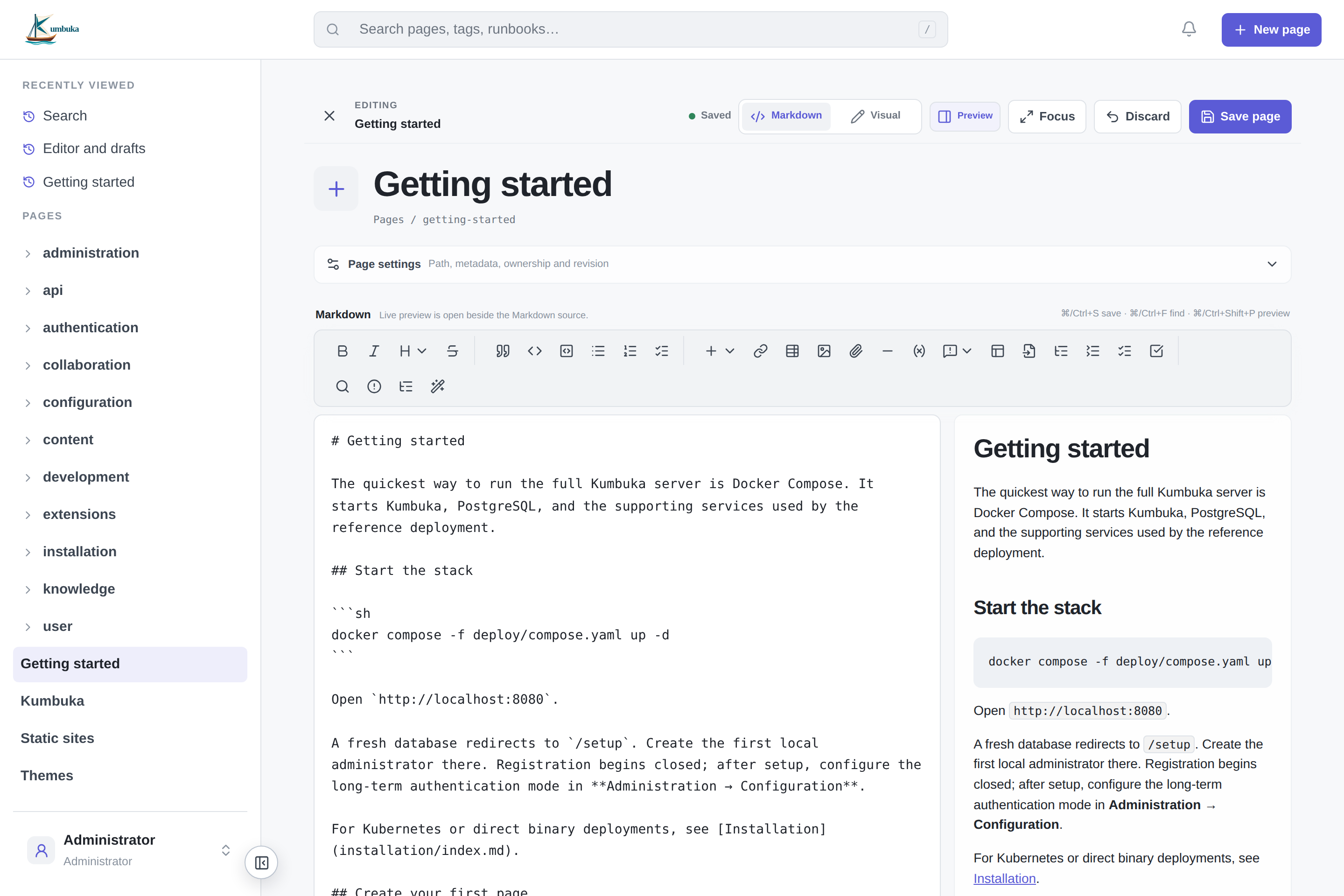
The editor opens in your last Markdown or Visual mode. Preview is a temporary Markdown subview and is not saved as the starting mode.
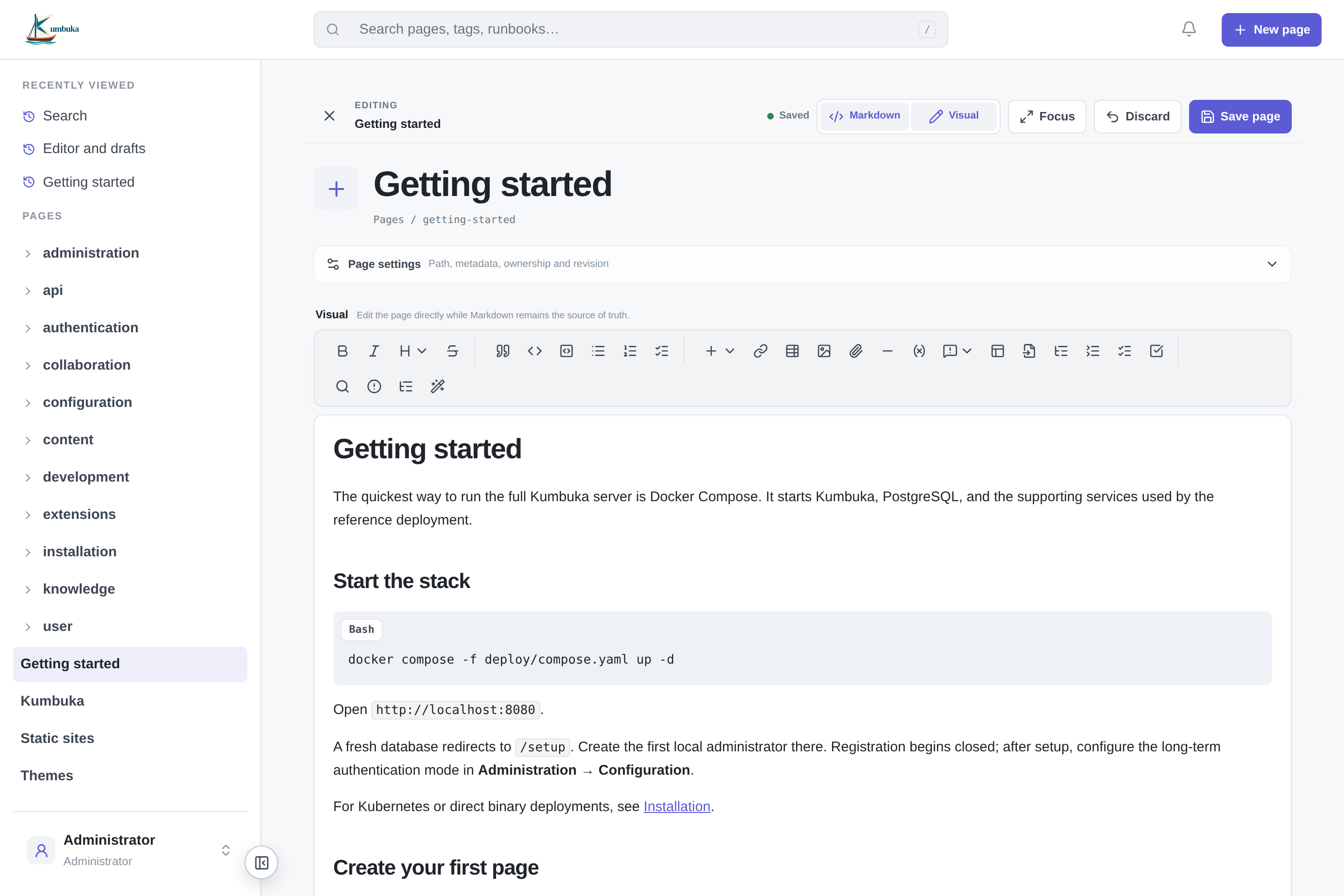
Visual editing
Choose Visual to edit rendered content directly while Kumbuka keeps the Markdown source synchronized.
Page fields
A page can include:
- path and title;
- optional icon and content-language override;
- Markdown body and revision message;
- tags and collaboration groups;
- lifecycle status;
- owner group and review interval;
- deprecated replacement target;
- structured key/value properties.
Quick insert
The editor provides reusable insert actions from the keyboard and toolbar:
- type
@to search users and insert a mention; - type
{{to search stored variables and insert{{var:name}}; - use Insert → Mention or Insert → Variable for the same pickers;
- type
/at the start of a line to open editor commands. Enabled plugins can add their own insert actions.
Autocomplete is disabled inside fenced code blocks.
The source editor also disables coding ligatures so operator sequences remain literal while editing. The Coding Ligatures plugin affects previews and rendered pages, not the Markdown source editor.
Find and replace
Use Find and replace in the editor toolbar or press ⌘/Ctrl+F to search the Markdown source. If a single-line selection is active when the panel opens, Kumbuka uses that text as the initial search term.
Search is plain text and case-insensitive by default. Enable Match case for case-sensitive matching. Next match and Previous match wrap at the end or beginning of the document, and the status shows the line containing the selected match.
Press Enter in the find field for the next match or Shift+Enter for the previous match. Replace changes the selected match, Replace all changes every match, and Escape closes the panel.
Draft protection
Kumbuka has two different kinds of drafts:
- Browser autosave protects unsaved form state in the current browser.
- Private server drafts let a user resume unfinished editor state on another device. Saving or explicitly discarding the draft removes it. If the page changed after the draft was created, Kumbuka warns about the newer saved revision.
A page whose lifecycle state is draft is different: it is a saved page with normal page and history behavior. See Page lifecycle.
Revision history
Every saved page update creates a revision. When the Revision History plugin is enabled, page details show recent revisions and link to the full history. Restoring an older revision creates a new revision from that Markdown; existing history is not rewritten.